Short a line, swap a line, remove a line
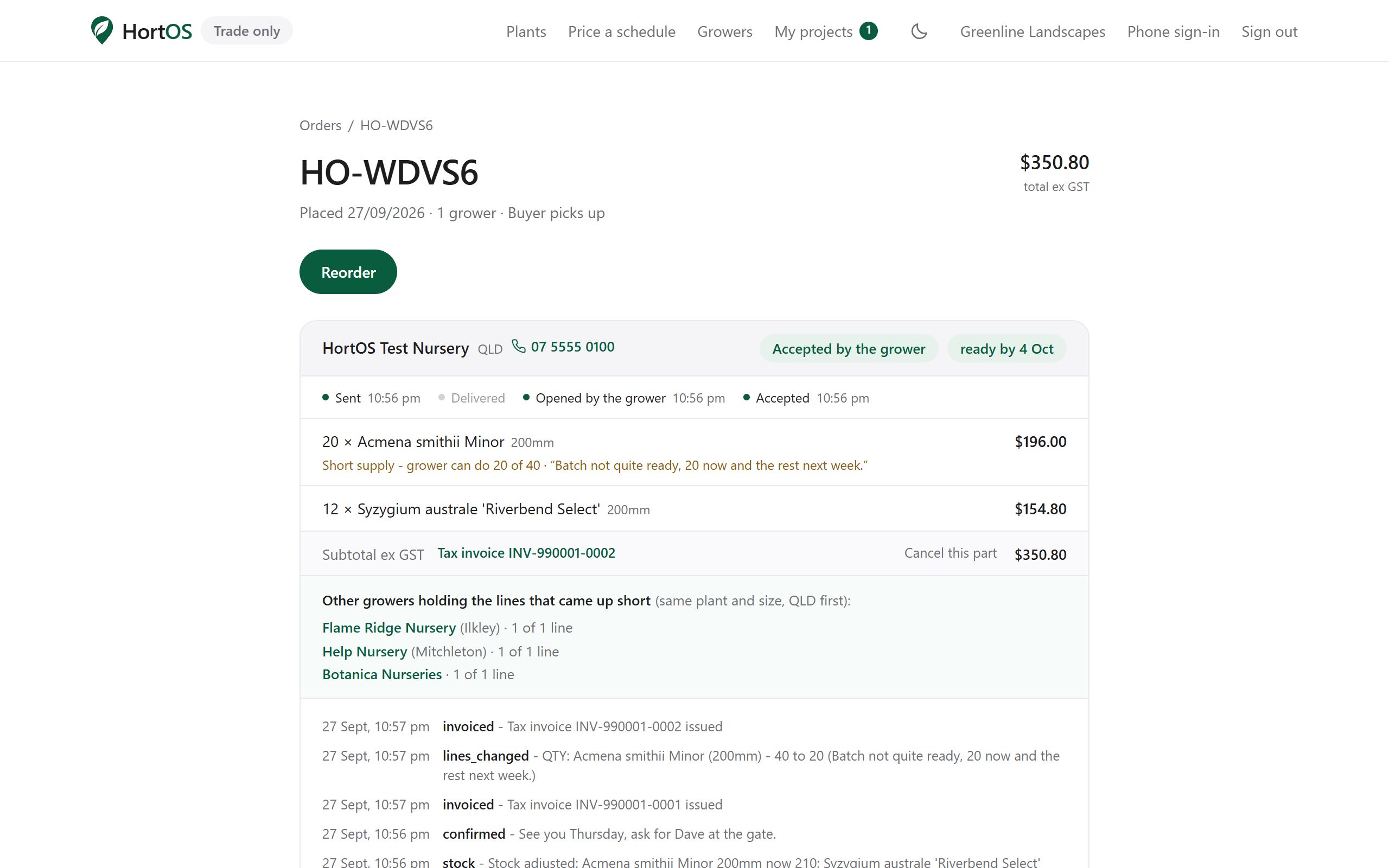
The buyer ordered 25 but you can only supply 20. Do not ring them. Amend the order and the buyer is told automatically.
5 steps · about 2 min
- 1
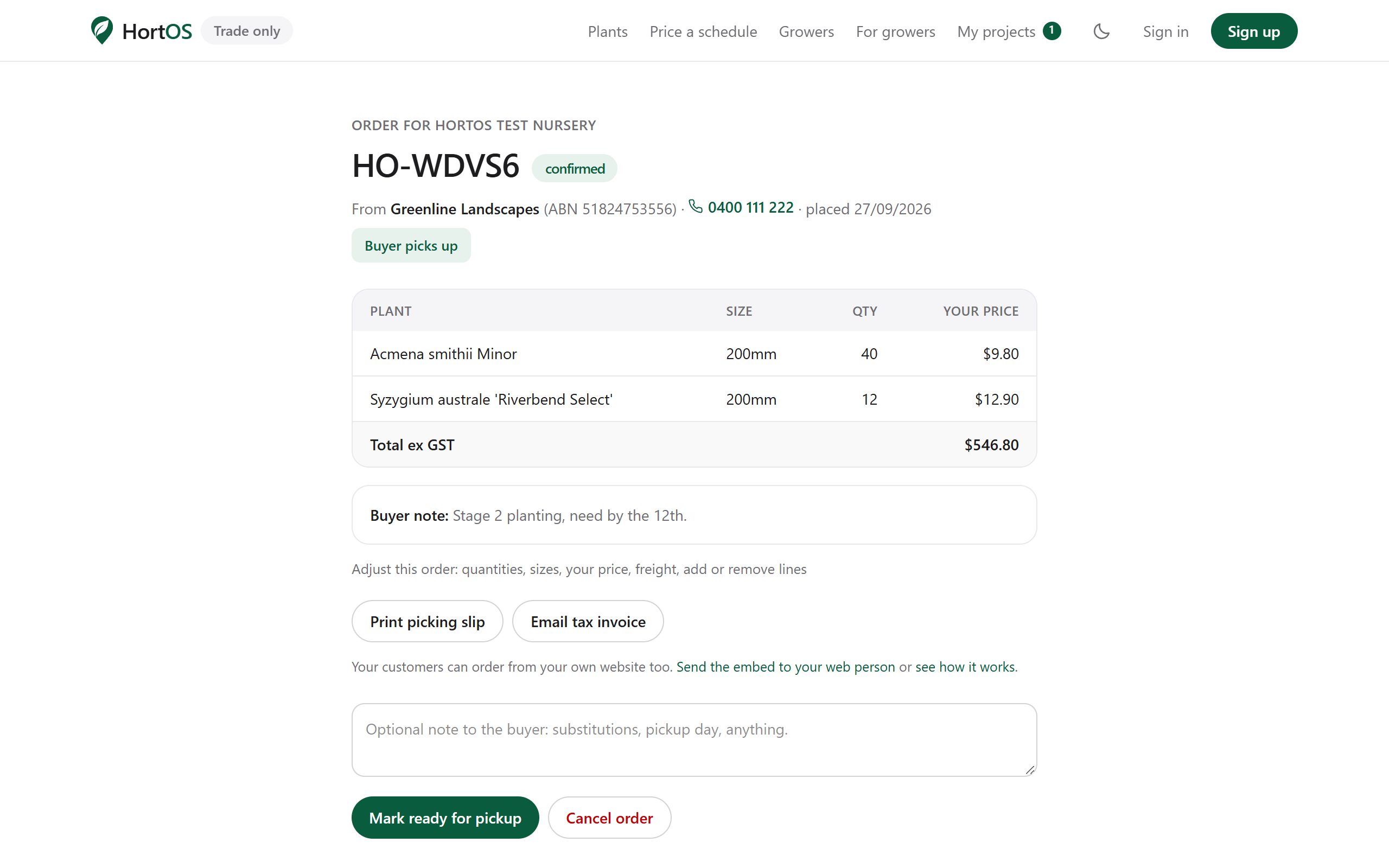
On the order page, click Adjust this order.
- 2
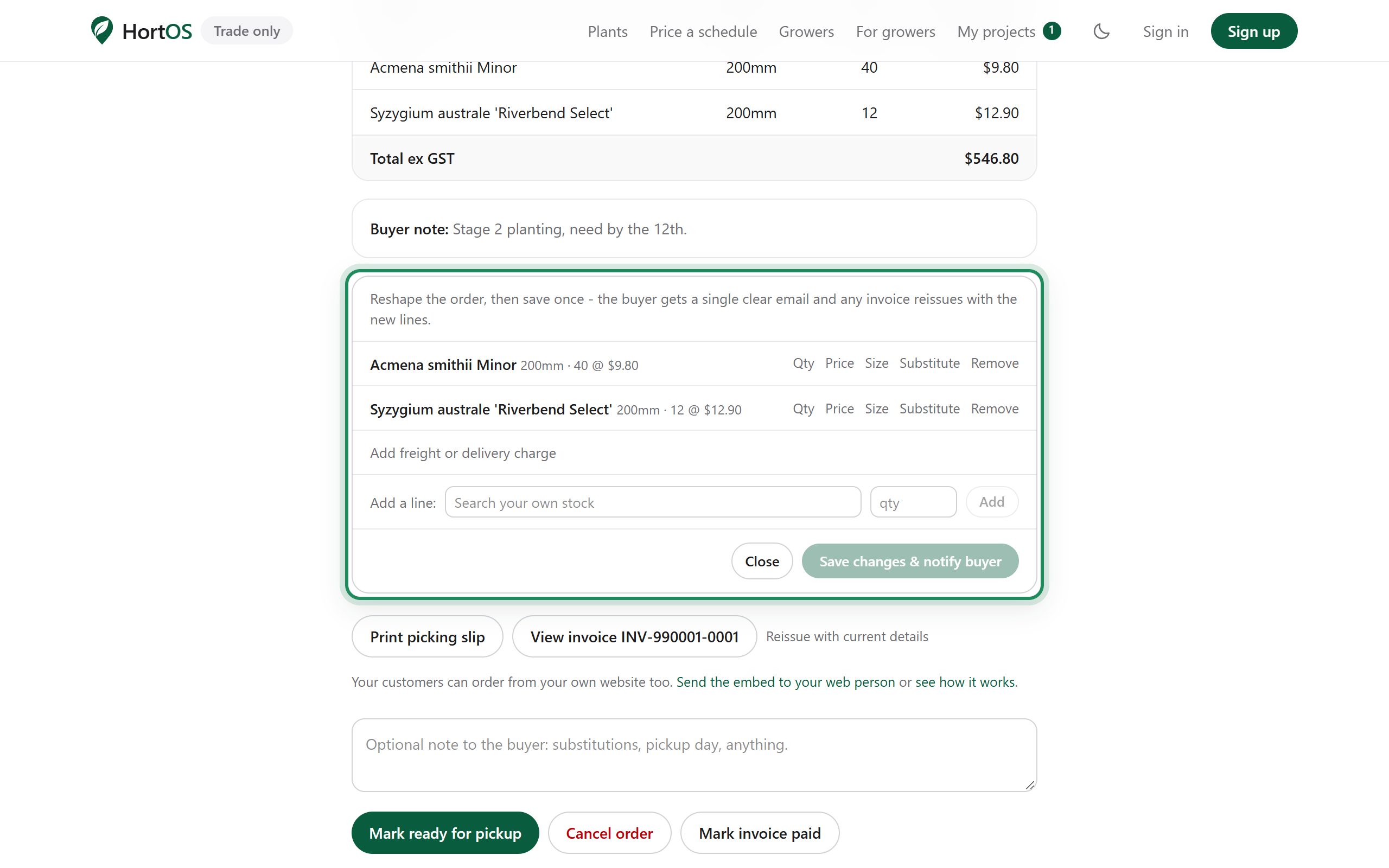
Every line opens up: change quantity or size, substitute a different plant, remove a line, or add one.
- 3
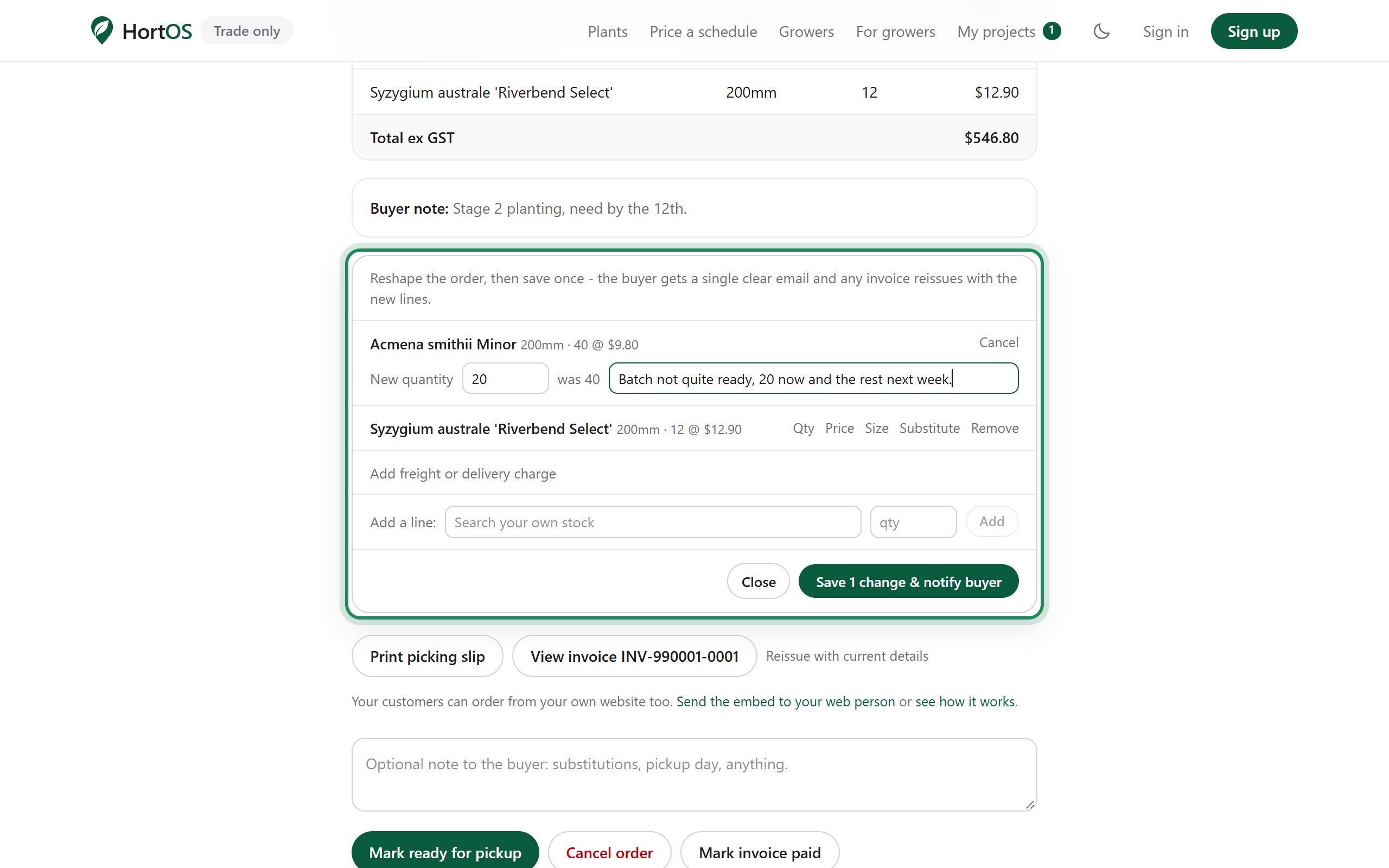
Change what you need to. Add a short note so the buyer knows why.
- 4
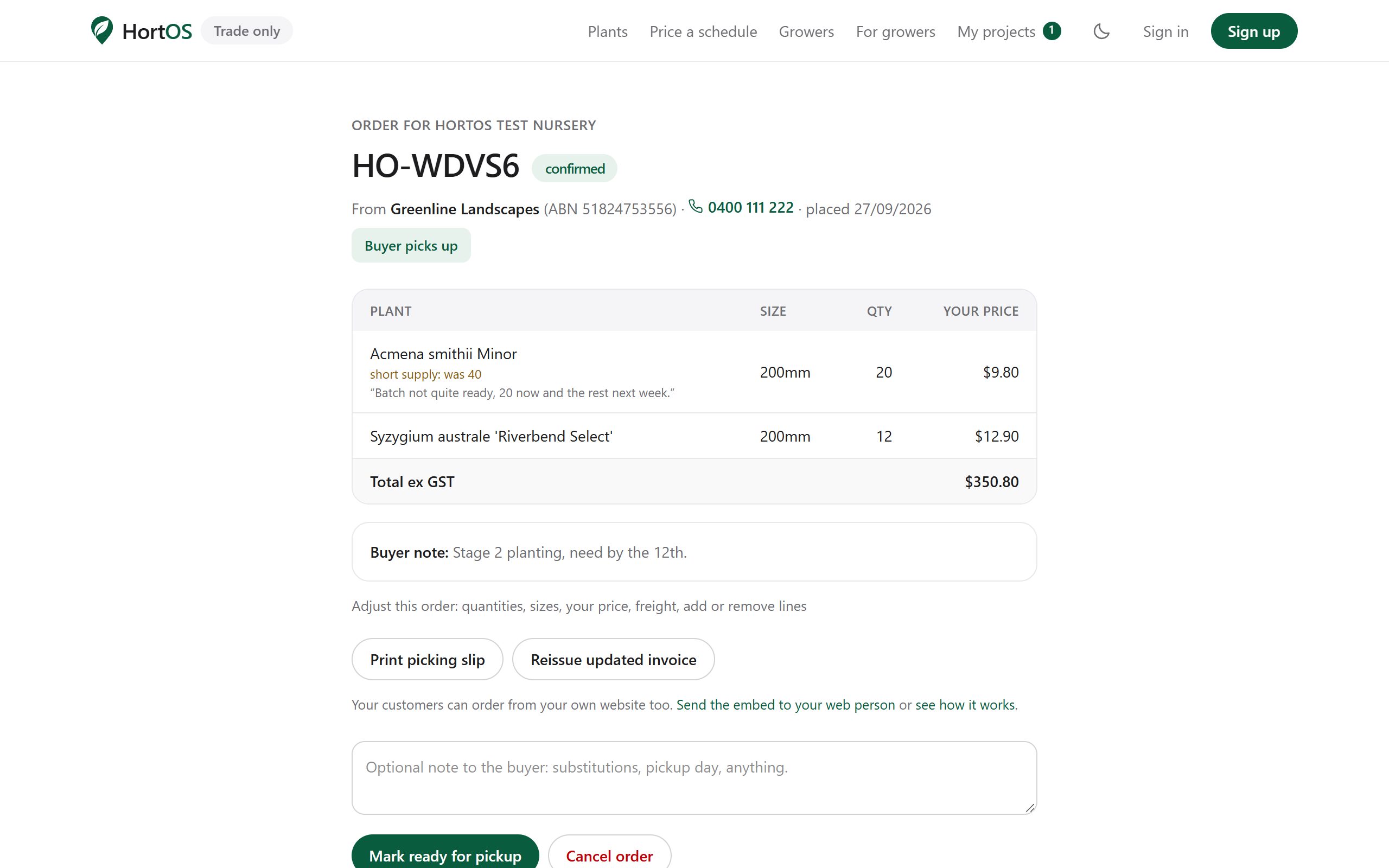
Click save and notify. The order updates and the buyer gets one clear email with the changes.
- 5
The buyer sees the change flagged on their order page too. No phone tag.
Stuck? Email team@hortosapp.com and we will sort it out, or set it up for you.